To activate two-factor authentication you will need:
- A mobile phone to receive SMS messages, or one of the authentication systems accepted by VÀLid: recognised digital certificate, mobile IdCAT, Cl@ve, or eIDAS.
To install a single-use code application on your mobile phone. Although there are several applications to generate single-use codes, we recommend that you install Microsoft Authenticator. Important: Once installed, there is no need for you to do anything else, do not register.
You can download Microsoft Authenticator on your mobile with these QR codes:
Android Devices Apple devices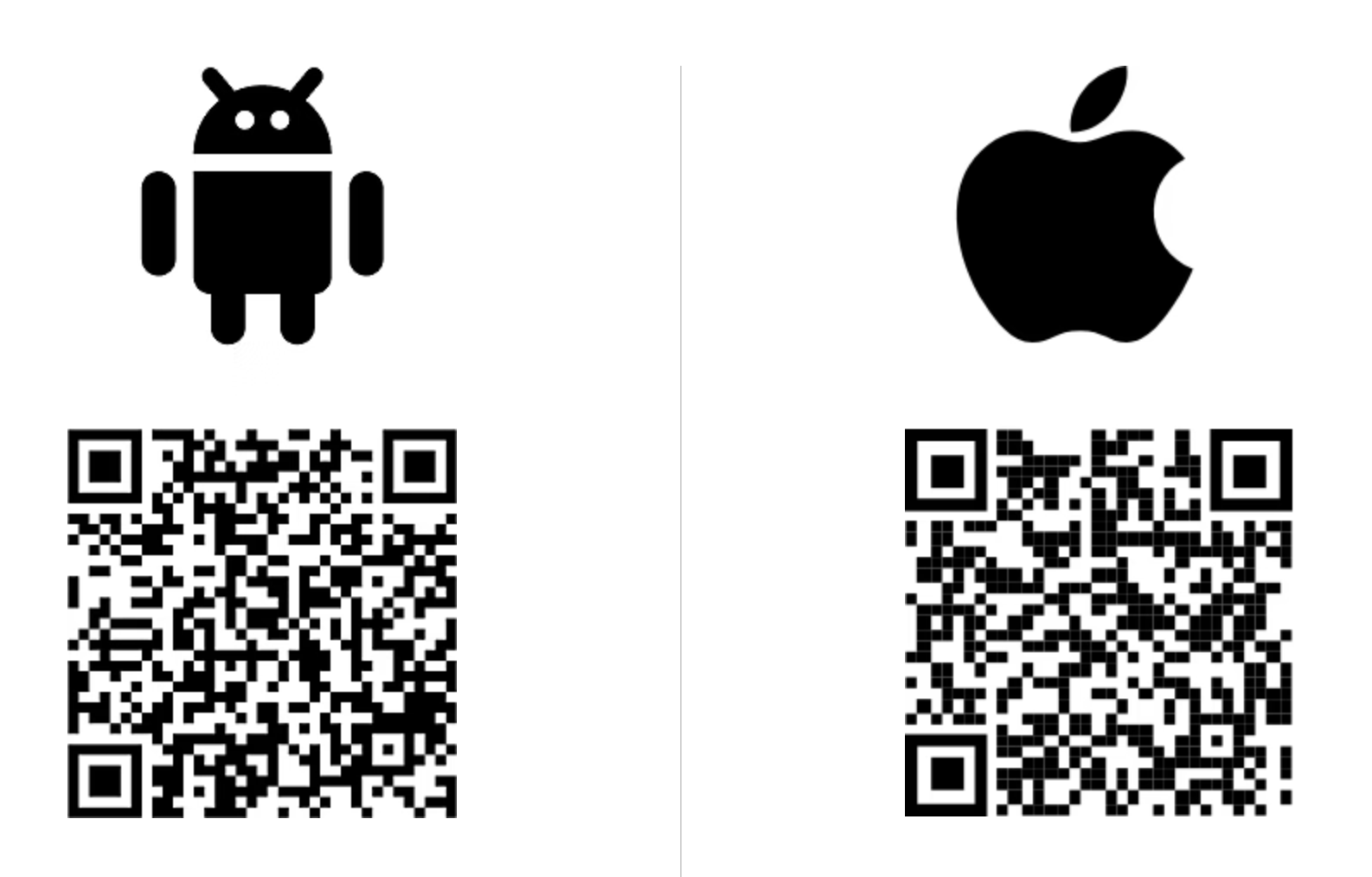
The Microsoft Authenticator app can be installed on any phone, whether private or provided by the UdG. If you have more than one phone, you can configure it to all your phones, so if you don’t have one of your phones on you, or you run out of battery, you can use the other phone.
The user support units will only offer support for MS. Authenticator If you decide to install a different application, you must be capable of solving any problems or difficulties by yourself.
Activation of the service is available at: Managing two-authentication factor , this link is available whenever we ask you for two-factor authentication:
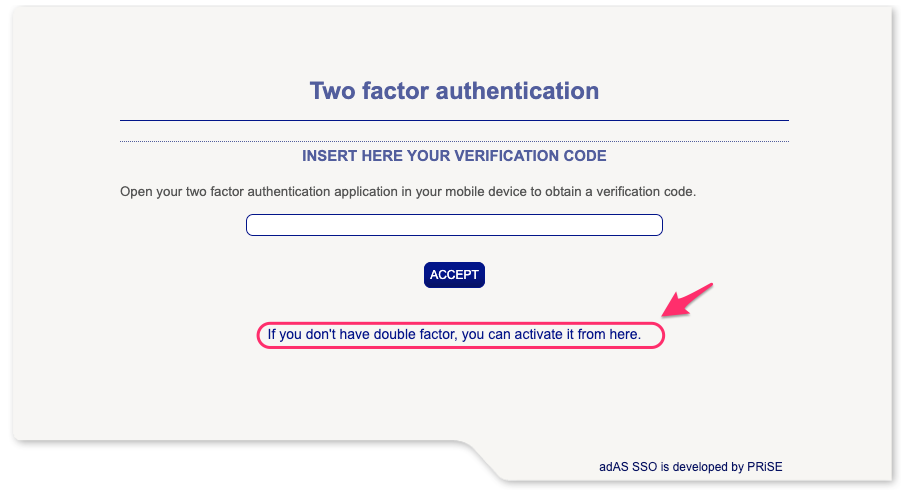
If, when you access the two-factor authentication page, the system detects that you have not entered your mobile phone number, you will be able to insert it by clicking on the link:
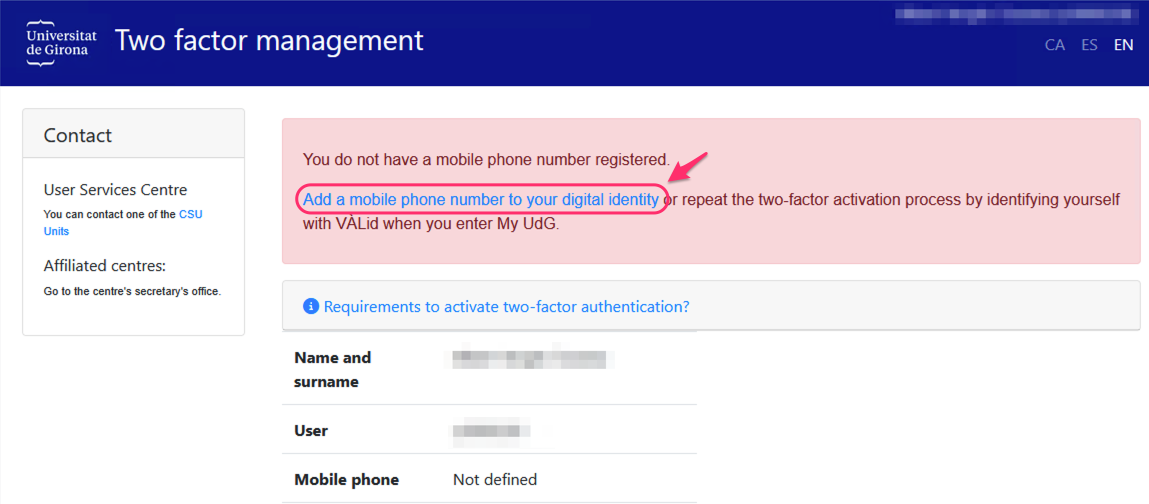
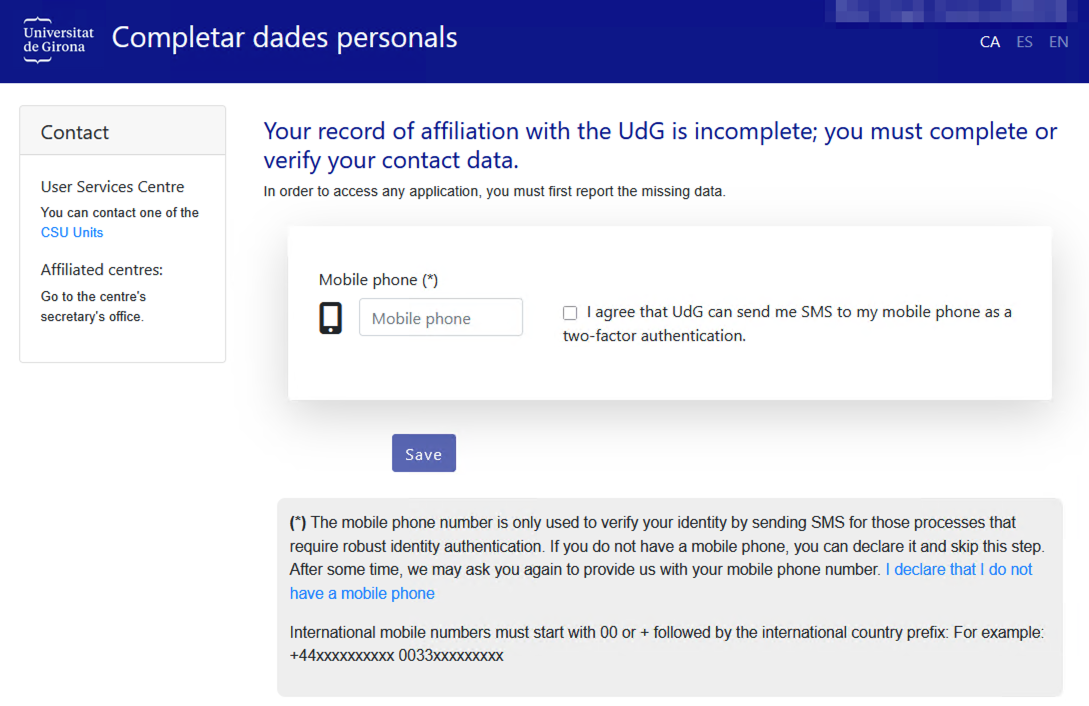
This link will take you to the screen to enter your mobile phone number, and you will also have to allow the UdG to send you SMS messages for the sole purpose of verifying your identity.
The mobile number you declare cannot be linked to any other person registered at UdG. You will need to check the phone number by entering a 5-figure code that we will send you by SMS to the mobile number you have entered.
If you have already entered the mobile phone number, identified it with VÀLid or entered your mobile having accessed the dual-factor management app, you can activate it by clicking on the ‘activate’ button:
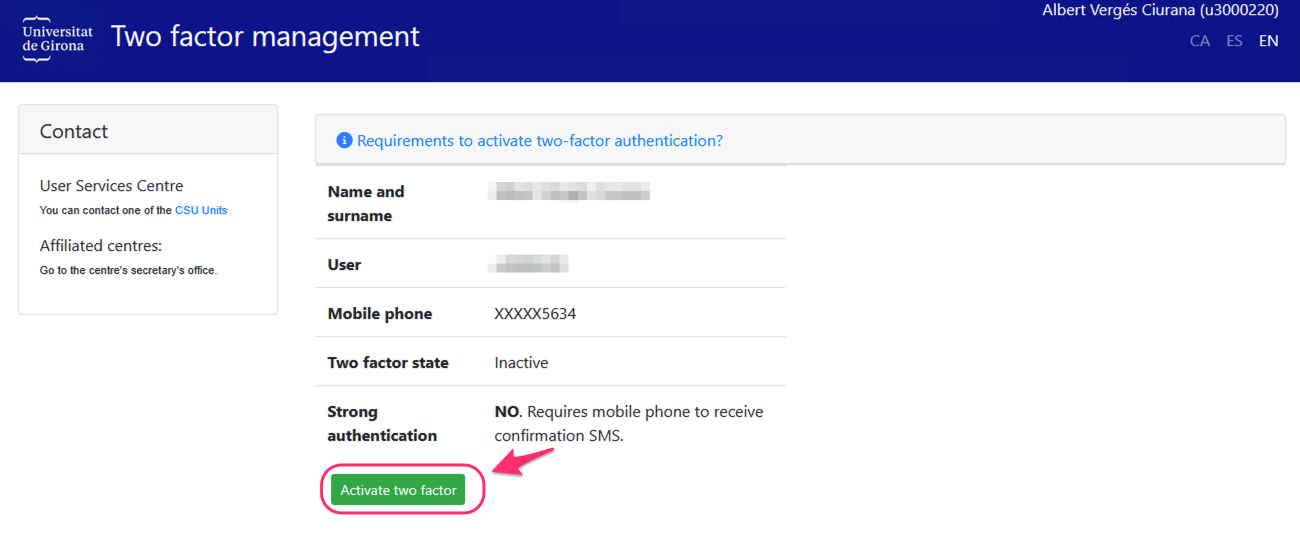
If you have accessed the app using VÀLid, the QR code will be shown automatically to configure the two-factor authentication for Microsoft Authenticator, otherwise you will first be asked to verify your identity with a 5-figure code that we will send to your MOBILE via SMS message:
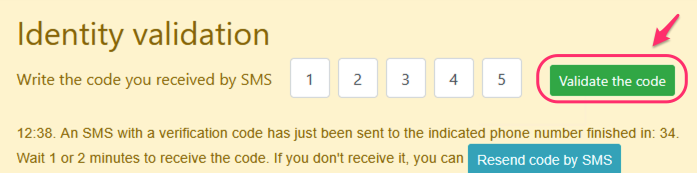
Enter the code you receive and press the ‘Validate the code’ button. If after a few minutes you have not received the SMS message, you can ask us to send you a new code by SMS again.
Once the code has been validated, you will obtain the QR code to configure the two-factor authentication in the MS.Authenticator app:
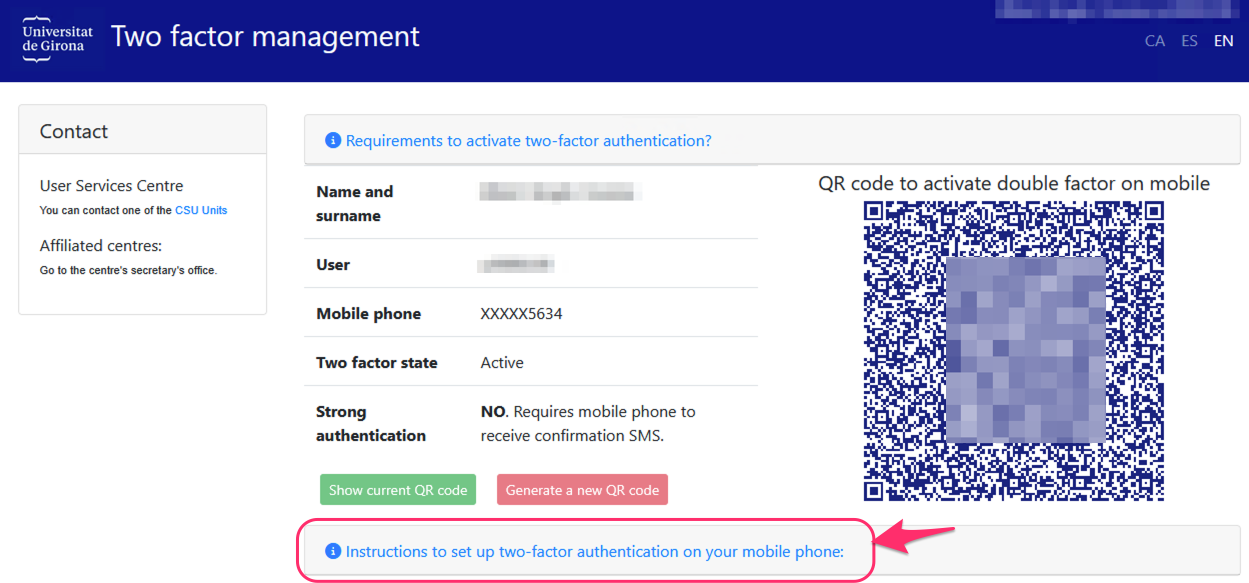
You will find the instructions for configuring two-factor authentication in Microsoft Authenticator with the QR code shown on screen by clicking on the link indicated in the previous screenshot.